How to Assign an Assessment to Suppliers?
Step 1: Navigate to the “Add Suppliers” Page
1.1 Go to the Add Suppliers section on the POSITIIVPLUS platform.
1.2 Here, you’ll be able to manually select suppliers and apply filters for targeted assignment.
Step 2: Select Suppliers
2.1 Manual Selection
2.1.1 Tick the checkbox next to the supplier’s name to select them individually.
2.1.2 To select all suppliers in the list, tick the top checkbox next to “Company Name.”
2.2 Search
2.2.2 Use the search bar to quickly find suppliers by:
Company name
Country
Contact person’s name
Other relevant details
2.3 Sort & Filter
2.3.1 Sort suppliers by:
Alphabetical Order (A–Z or Z–A)
Latest Added
Earliest Added
2.3.2 Apply filters to narrow your selection:
Location: Country, State, City
Supplier Category: Tier 1, Tier 2, Tier 3
Business Type: Manufacturing, Services, Trading
Supplier Status:
Excellent: All documents submitted
Good: Documents in progress
Warning: No documents submitted
High Risk: Missed submission deadline
2.4 Apply/Reset Filters
2.4.1 Click “Apply Filters” to activate your selected filters.
2.4.2 Click “Reset All” to clear all applied filters.
Step 3: Compose Initial Email
3.1 After finalizing supplier selection, set up the communication flow.
3.2 Draft the initial email by filling in:
Title – Email header/title
Subject – Short and clear subject line
Body – Content of the email detailing the assessment and expectations
3.3 Click “Next” to proceed.
3.4 Schedule Initial Email
3.4.1 Choose the date and time the initial email should be sent.
3.4.2 Click “OK” to confirm the schedule.
Step 3: Compose Initial Email
3.1 After finalizing supplier selection, set up the communication flow.
3.2 Draft the initial email by filling in:
Title – Email header/title
Subject – Short and clear subject line
Body – Content of the email detailing the assessment and expectations
3.3 Click “Next” to proceed.
3.4 Schedule Initial Email
3.4.1 Choose the date and time the initial email should be sent.
3.4.2 Click “OK” to confirm the schedule.
Step 4: Compose Follow-Up Email
4.1 Draft a follow-up message to remind or prompt suppliers to begin or complete the assessment.
4.2 Fill in:
Title
Subject
Body – Reminder message or progress nudge
4.3 Schedule Follow-Up
4.3.1 Choose when to send the follow-up email using preset options:
1 Business Day, 2 Business Days, 1 Week, 2 Weeks, 1 Month, 3 Months
Or choose Custom Date for manual date selection
4.3.2 Click “OK” to confirm.
Step 4: Compose Follow-Up Email
4.1 Draft a follow-up message to remind or prompt suppliers to begin or complete the assessment.
4.2 Fill in:
Title
Subject
Body – Reminder message or progress nudge
4.3 Schedule Follow-Up
4.3.1 Choose when to send the follow-up email using preset options:
1 Business Day, 2 Business Days, 1 Week, 2 Weeks, 1 Month, 3 Months
Or choose Custom Date for manual date selection
4.3.2 Click “OK” to confirm.
Step 5: Compose Final Email
5.1 Create a final reminder email to emphasize urgency for completing the assessment.
5.2 Fill in the required fields:
Title
Subject
Body – Final call-to-action encouraging completion
5.3 Schedule & Submit
5.3.1 Click Submit after composing the email.
5.3.2 Schedule the send time using preset options or a Custom Date.
5.3.3 Click “OK” to finish the setup.
Step 5: Compose Final Email
5.1 Create a final reminder email to emphasize urgency for completing the assessment.
5.2 Fill in the required fields:
Title
Subject
Body – Final call-to-action encouraging completion
5.3 Schedule & Submit
5.3.1 Click Submit after composing the email.
5.3.2 Schedule the send time using preset options or a Custom Date.
5.3.3 Click “OK” to finish the setup.
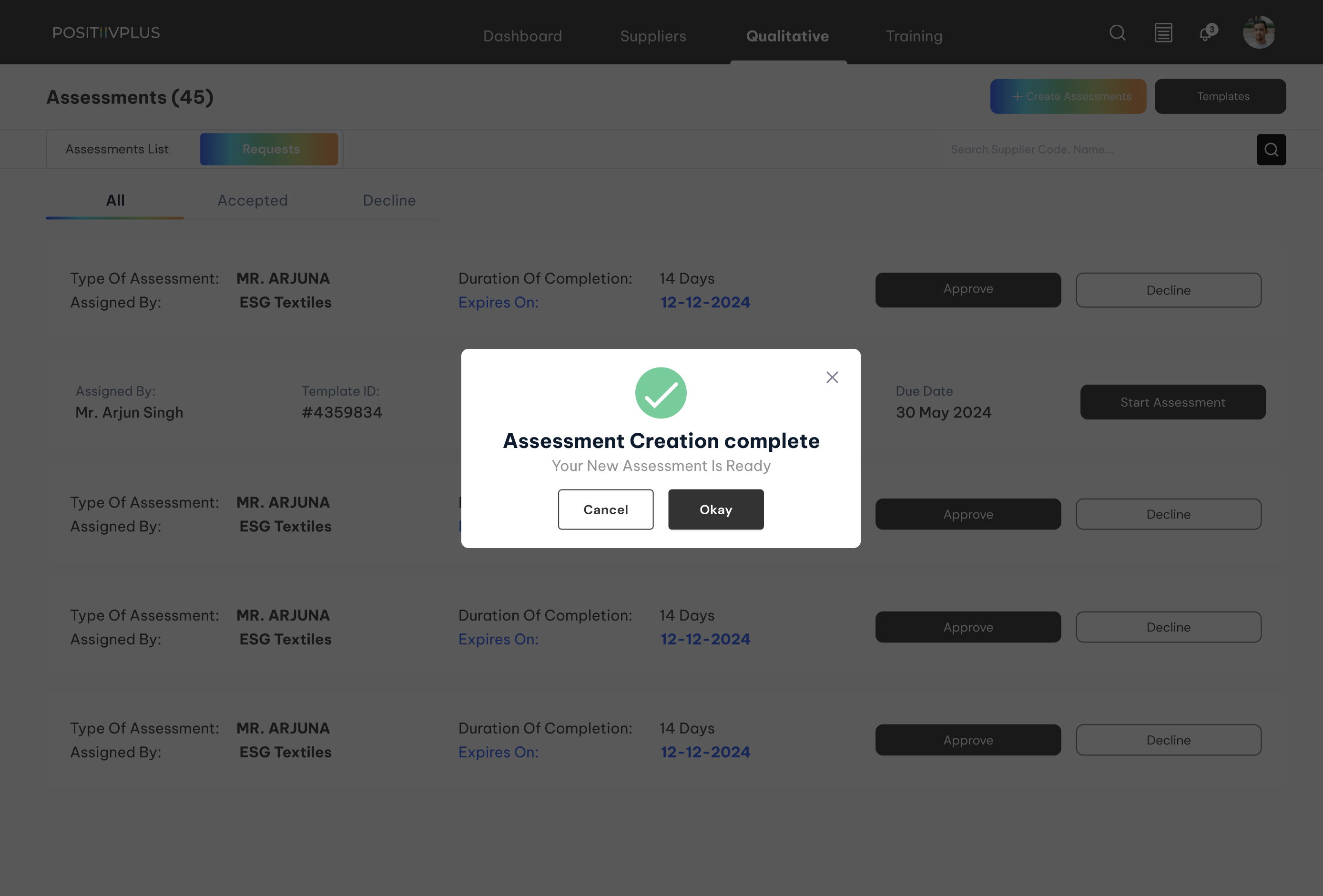
Result: The assessment is now successfully assigned to the selected suppliers.
Result: The assessment is now successfully assigned to the selected suppliers.
Related Articles
What does an Assessment Profile look like?
An assessment profile offers a comprehensive overview of assessment progress, supplier performance, and supporting documents. Follow the steps below to explore its key features. Step 1: Open the Assessment Overview 1.1 From the Assessment List, click ...How Do I Create an Assessment in POSITIIVPLUS?
Follow the steps below to create and configure a new assessment using the Qualitative Feature in the POSITIIVPLUS platform. Step 1: Navigate to the Qualitative Feature 1.1 From the main menu, locate and click on the “Qualitative Feature” section. ...How Do I Assign an Action to Suppliers?
This guide explains how to create and assign a new action to suppliers in the POSITIIVPLUS platform. Step 1: Start the Assignment Process 1.1 Navigate to the Actions section. 1.2 Click on the "Add New Action" button to initiate a new assignment. Step ...Assessment List Overview
The Assessment List page provides a centralized view to manage and track all assessments created on the POSITIIVPLUS platform. Here's a step-by-step breakdown of its features and how to use them: Step 1: Use the Search Bar 1.1 Navigate to the top of ...Joining the Supplier Assessment Program
1. Invitation Email: The supplier receives an invitation to join the Supplier Assessment Program via POSITIIVPLUS. 2. Accept Invitation: Click on the "Accept Invitation" button in the email. 3. Redirect to POSITIIVPLUS Signup: The supplier will be ...